GPU instance info and management
After renting a GPU instance, you can view and manage it on the Running Instances — GPU cloud page. Instances are organized by type with separate tabs: Container, VM, and Bare Metal.
Instances list
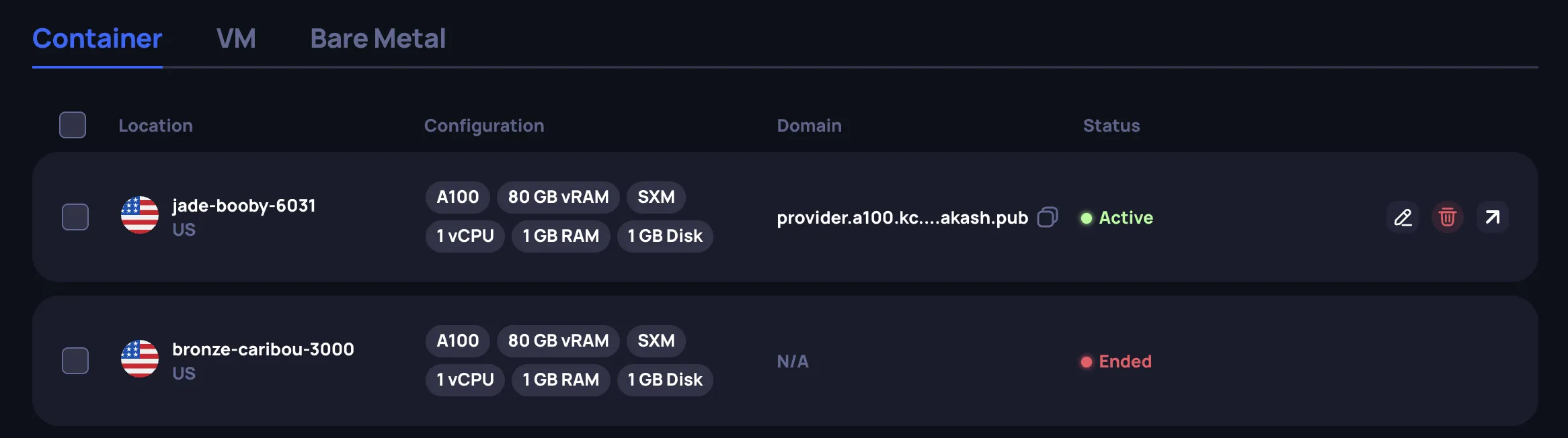
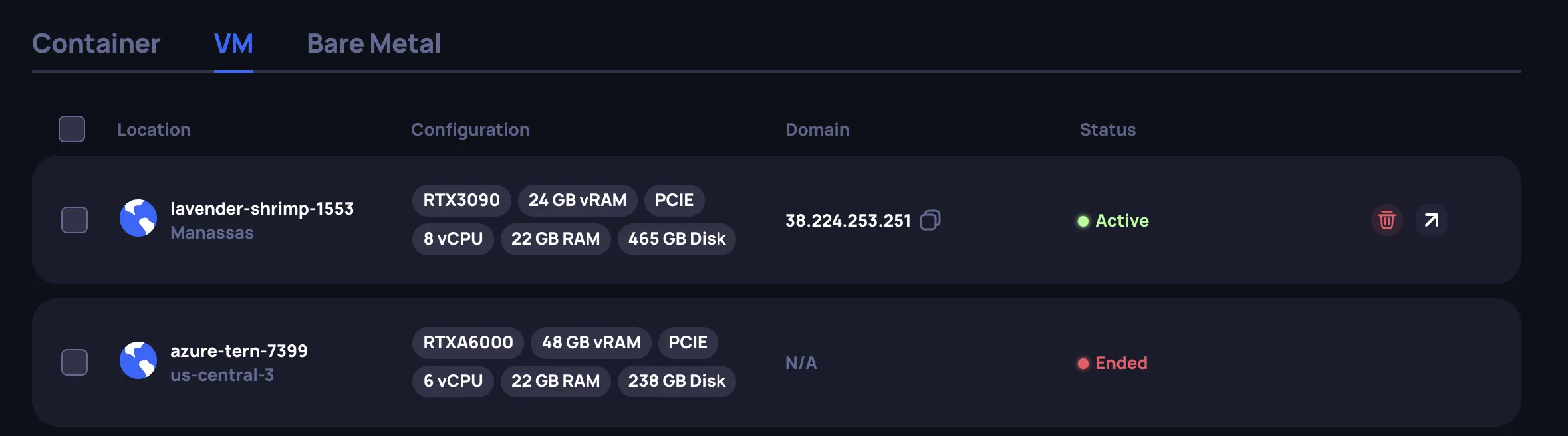
The instances list displays your GPU instances. Each instance card shows:
- Location — data center location
- Configuration — hardware summary: GPU model, vRAM, interface type, vCPU, RAM, and Disk
- Domain — the domain name or IP address assigned to the instance
- Status — current state of the instance (see instance lifecycle)
Active instances have action icons: edit name (pencil), terminate (trash), and open details (arrow).
GPU container
Instance details
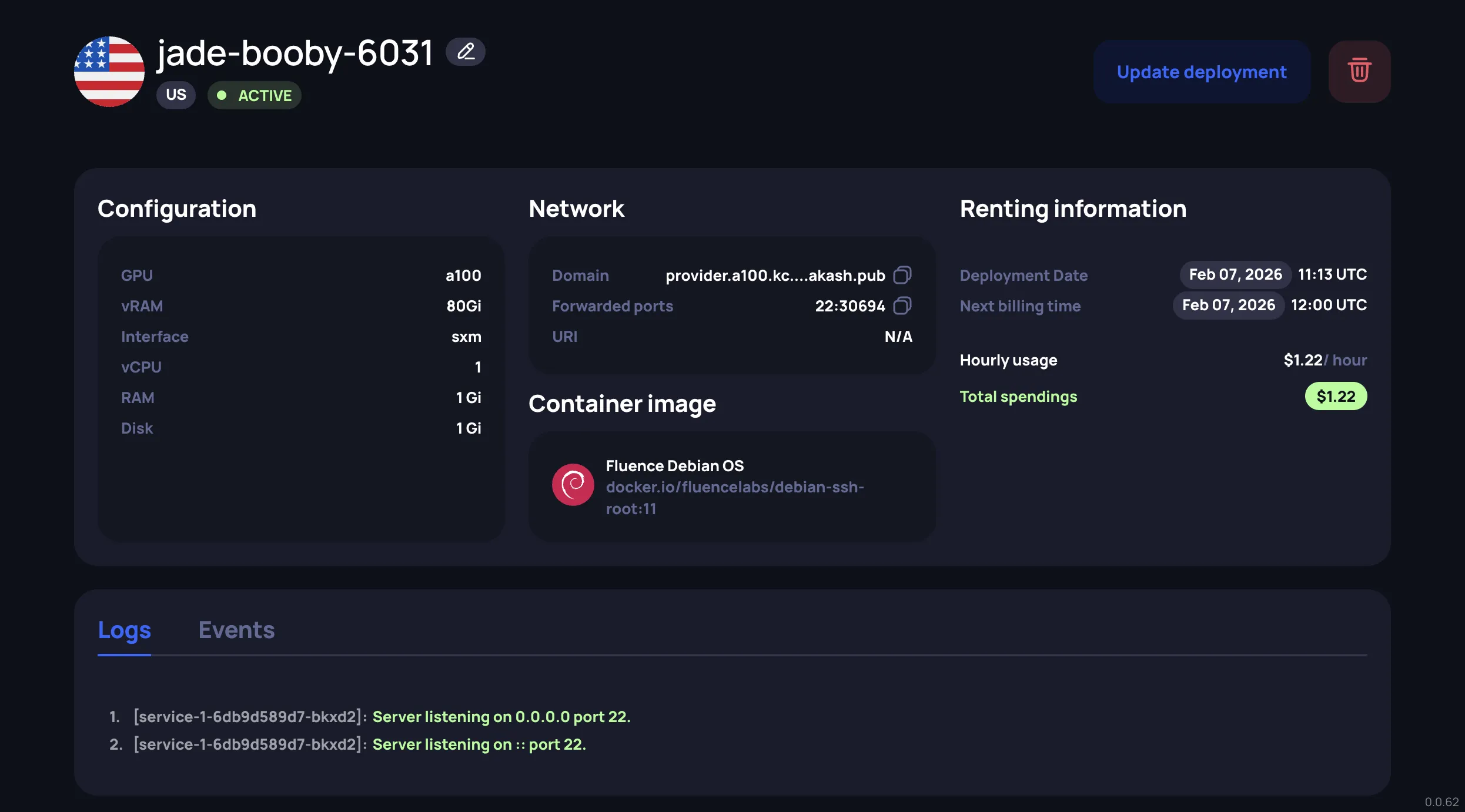
Open an instance card to view its details. The details page provides:
- Configuration — the hardware allocated to the instance: GPU model, vRAM, interface, vCPU, RAM, and Disk
- Network — connectivity information:
- Domain — the domain name or IP address assigned to the container
- Forwarded ports — your specified ports are mapped to externally accessible ports by the cluster (e.g., your port
22may be forwarded to30694). Use the forwarded port together with the domain to connect. - URI — the HTTP address, available when port 80 was enabled during creation
- Renting information — deployment date, next billing time, hourly rate, and total spendings
- Container image — the image currently running on the instance
Logs and Events
At the bottom of the details page, two tabs provide runtime information:
- Logs — container output (stdout/stderr)

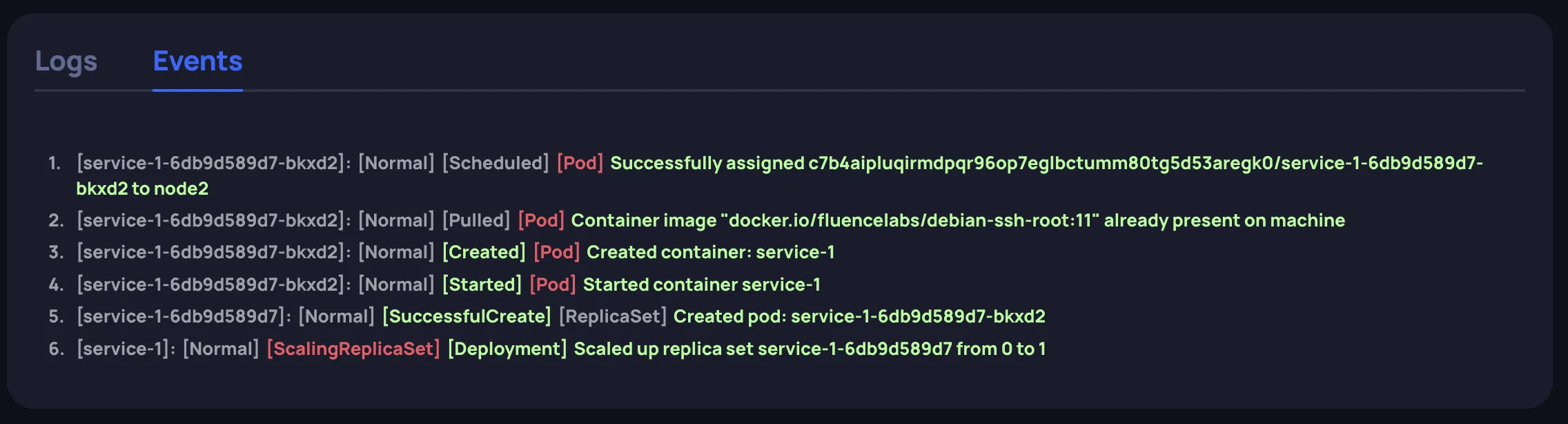
- Events — cluster-level events for the instance lifecycle: scheduling, image pulling, container creation, and startup
Updating a container deployment
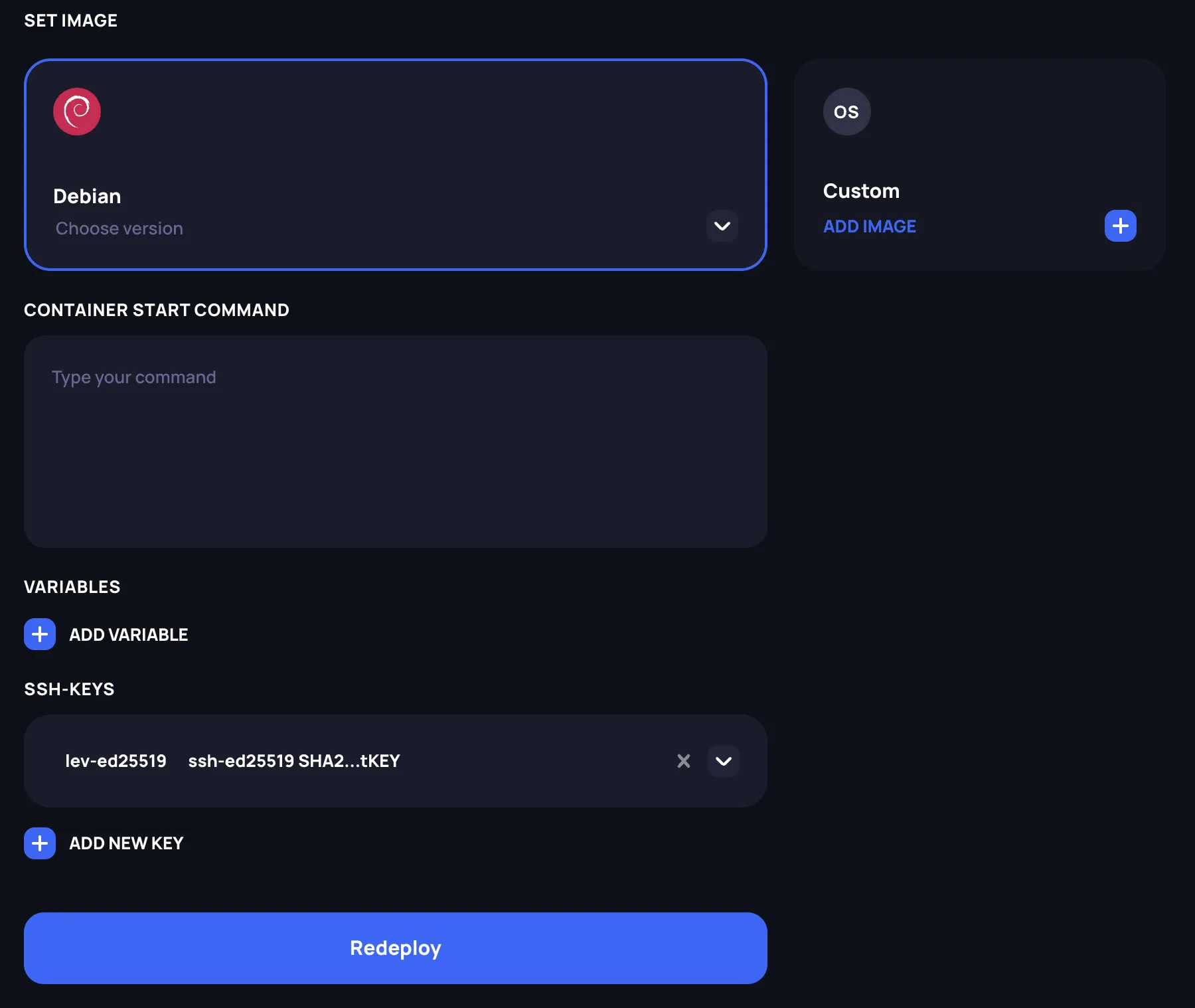
You can update a running container by clicking Update deployment on the details page. The following can be changed:
- Container image (predefined or custom)
- Container start command
- Environment variables
- SSH keys
The update page works the same way as the instance creation flow. After making your changes, click Redeploy to restart the container with the updated configuration.
VM and Bare Metal
Instance details
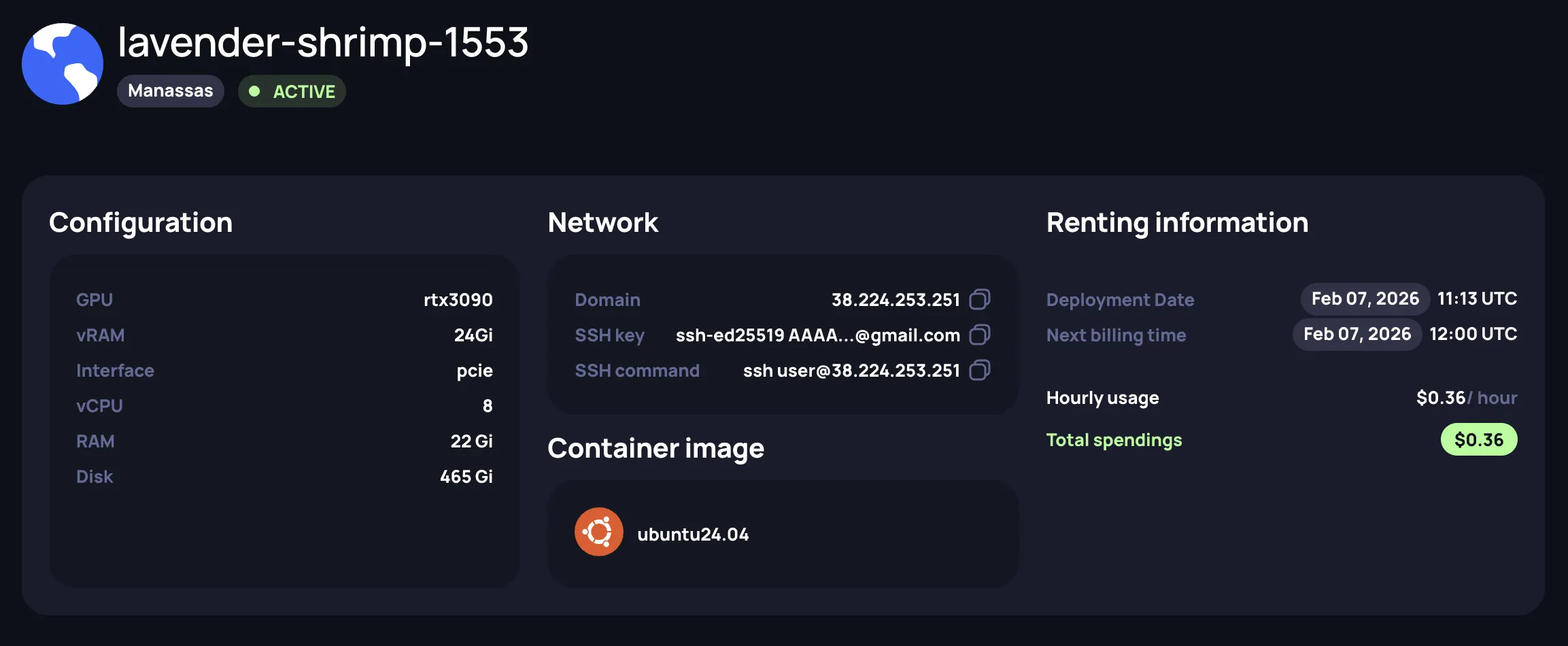
Open an instance card to view its details. The details page provides:
- Configuration — the hardware allocated to the instance: GPU model, vRAM, interface, vCPU, RAM, and Disk
- Network — connectivity information:
- Domain — the domain name or IP address assigned to the instance
- SSH key — the key associated with the instance
- SSH command — a ready-to-use command to connect to the instance via SSH
- Renting information — deployment date, next billing time, hourly rate, and total spendings
- OS image — the image used for the instance
Updating a running VM or bare metal instance is not currently supported. To change the configuration, terminate the instance and create a new one.
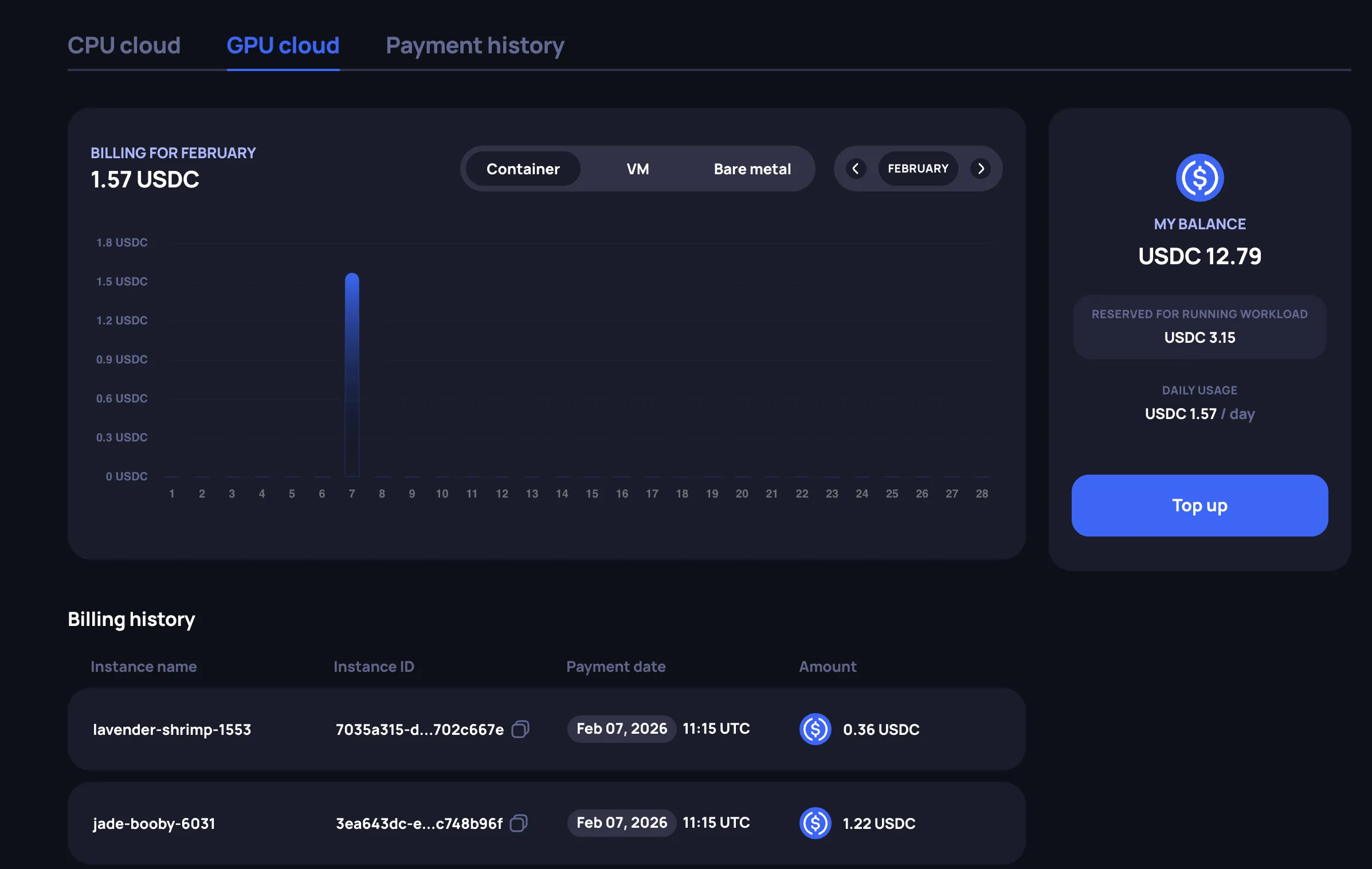
Billing
The history of your charges can be found on the Billing page under the GPU cloud tab. The page shows your monthly spending with a daily breakdown chart, filterable by instance type. The Billing history table lists each charge with the instance name, instance ID, payment date, and amount.